


Design an build your robot with the supplied LEGO pieces. You may add other components if you wish -- the only rule is: please do NOT superglue the LEGO pieces together! We will need them for next year's COMP 201!!!!!
|
|
|
|
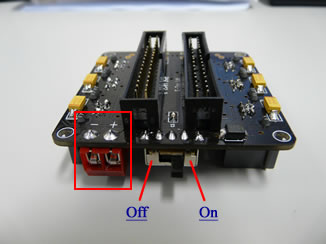
Get the i*CATch main board and connect the bluetooth dongle to it.
 |
 |
|
 |
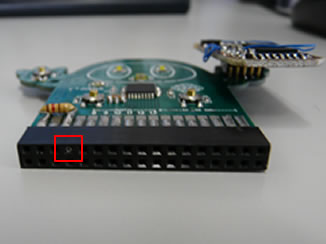
Connect the wires from the battery box to the interface board. Put in the batteries.
 |
 |
|
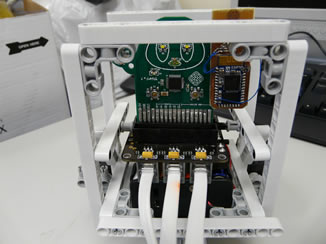 |
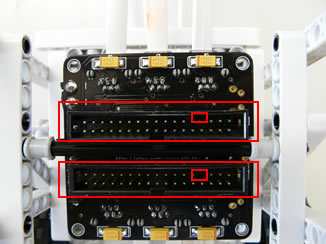
Plug the i*CATch mainboard into the interface board. Warning: There's only one correct way to plug it in, so if it's not going in, do not force it! Check the pins and make sure that you're plugging it in the correct way.
 |
 |
Set the switch on the interface board to the "On" position. If you have followed all the steps correctly, the green light on the i*CATch mainboard should turn on.
 |
 |
Your Python program runs on your computer, which will send the commands to your robot and get the sensor readings back via Bluetooth. If you're using a desktop computer, now is the time to plug in your Bluetooth adapter. If you're using a laptop, turn your Bluetooth on. Using the Bluetooth setting interface on your computer, pair your computer with your robot. (We're showing an example of an interface -- yours may vary depending on your Bluetooth adapter's brand.) Check under the list of Bluetooth devices for your robot (for example, the robot here is called SAM_CATch), and record the name of the communication channel that is associated with the robot (in this case the name is "COM40") for your program.
 |
You can now control your robot from the computer. The following shows a simple program that blinks the lights on the robot. Make sure that you type in the correct name for the communications channel in the robot.connect() program statement (in line 5 in the example program).
 |
 |
To run your program, open up a command prompt and cd into the folder that your program is saved in. Run your program in the usual way. In this example, the name of the program is called robotDemo.py. (Note: the first time you run your program and your computer tries to connect to the robot, it may ask you for the password for the robot. The default password is 1234.) Once you are connected, your program should start running.